
Reads the rekordbox export you just made, makes an MP3 twin of anything a deck can’t play, and writes one database per deck onto the key — leaving your originals in place.
§
HANDBOOK
EVERYTHING, IN ONE PAGEHOW TO USE
BOTH HALVES.
Dyapason is a USB key that carries your library and adapts it to whatever deck you plug into, plus a player with headphones so you can listen to it on the way there. This is everything you need to use both halves.
01
HOW IT WORKS
START HERETWO HALVES, ONE KEY.
Every deck reads a different set of formats, and a rekordbox export only ever points at the files you exported. Dyapason closes that gap: on a computer it prepares the key so any deck can read it, and in the booth the key itself decides which deck it is pretending to be.
Plugs into the deck as a normal USB key. Its screen lets you pick which deck’s database is live, and play the library through headphones while you wait for your set.
The deck never knows any of this. It sees a USB key with tracks it can read, with your artwork, waveforms, beat grids and playlists intact.
02
MANAGER
macOS · NOTHING TO INSTALLONE WINDOW, ONE BUTTON.
It works on macOS; ffmpeg and everything else it needs are inside the app, so there is nothing to install alongside it.
DECKKEY230 tracksDYAPASON KEY
Dyapason USB driveAll formats and profiles — pick the deck on the key
DECK AT FIRST PLUG-IN
XDJ-700▾
Ready — all deck profiles will be written
230 tracks · 14.2 GB used · 49.8 GB free
MAKE MY DYAPASON MAGIC ↵
EJECT DRIVE E
Restore from Original state 2026-09-11412 MB
Step by step
- Export to the key from rekordbox first. The Manager only lists drives that already carry a rekordbox export, so a blank stick never appears in the list.
- Plug the key in. It shows up within a couple of seconds, with its name, its track count, and a DYAPASON KEY badge if it’s your device rather than a plain stick.
- Leave “Dyapason USB drive” ticked. That’s the mode that writes a database for every deck, so you can change your mind in the booth. The dropdown then only sets which deck it starts on.
- Press “Make my Dyapason magic” (or Enter). You’ll see it fixing track tags, converting audio, then writing each deck’s profile in turn.
- Wait for the finished line — All 9 profiles written — safe to eject — then press Eject drive and unplug.
Keys: ↵ prepare · ↑↓ pick drive · E eject · R jumps to Restore, then Enter to confirm.
The two modes
| Dyapason USB drive · ticked | Unticked · a plain USB stick | |
|---|---|---|
| Databases written | One per deck, nine in all, plus the one the deck reads | One, for the deck you chose |
| Changing deck later | On the device, in seconds | Only by preparing again on the computer |
| Your original files | All stay on the key | Files that deck can’t read are moved into the save on your computer |
| Space used on the key | More: an MP3 twin of every FLAC and every high-resolution file | Less |
The checkbox follows the drive by itself — detected: Dyapason key or detected: plain drive — and says set by you once you override it.
What it does to your key
- Makes MP3 copies (320 kbps) of anything a target deck can’t play: FLAC, and files above 48 kHz or 16-bit for the older decks. The copies sit next to your originals; nothing is replaced.
- Rewrites the database so those tracks point at the MP3s, keeping title, artist, key, BPM, ratings, colours and playlists. Your untouched rekordbox export is kept beside it as
export.pdb.original. - Copies the waveform and beat-grid files across to the new tracks, so decks don’t re-analyse on load — that’s the 30-second wait and blank waveform you get otherwise.
- Fixes two things Pioneer players choke on: MP3s tagged with the newer ID3 version (the cause of error E-8305, common in Bandcamp downloads), and certain WAV headers. Both edit the file on the key itself.
BACKUPS
Back up first is on by default and takes a save of the key’s database folder before anything is touched, kept on your computer at ~/.deckkey/backups — one save per key, refreshed on each run. Restore from… puts the key back exactly as it was: originals returned, the MP3s Dyapason made removed, the database folder put back.
In the plain-stick mode, the save is also where unplayable originals are moved. Turning backups off there means nothing is moved off the key, since there’d be nowhere to move it to.
READ BEFORE TURNING BACKUPS OFF
The tag and WAV header fixes are made on the key itself. With backups on, Restore can undo the WAV one. With backups off, neither can be undone from the app — keep your rekordbox library as the master copy, which it already is.
When you change your library
Export from rekordbox to the key as usual, then run the Manager again. It notices the fresh export, takes it as the new starting point and redoes the work from there. Until you do, the deck will be reading the old database.
03
THE DEVICE
FOUR BUTTONS · ONE SCREENA AND B ON THE LEFT, X AND Y ON THE RIGHT.
The bar along the bottom of the screen always tells you what each one does right now — the lower label appears while you hold a button.
AB
XY
Everywhere
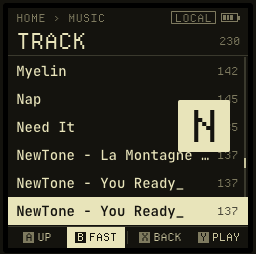
A and B move up and down, X goes back, Y opens or confirms. Hold A or B to scroll fast through a long list — in an A–Z list a big letter shows where you are. Hold X to jump straight home.
Top line
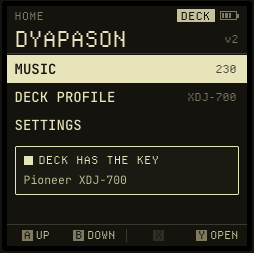
Where you are, then ▶ or ‖ when music is playing, then who holds the key — DECK or LOCAL — and the battery.
Power and sockets
Charge over USB-C on the battery board underneath. Headphones go in the 3.5 mm socket (use the 6.35 mm adapter for booth headphones). The deck connects to the micro-USB port marked USB, never the one marked PWR IN.
The key belongs to one of you at a time
The deck and the player cannot read the key at the same time, so Dyapason hands it back and forth, and always says who has it. It starts up with the deck holding the key, which is why DECK is in the corner when you switch it on.
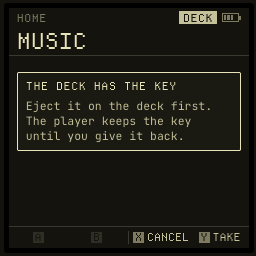
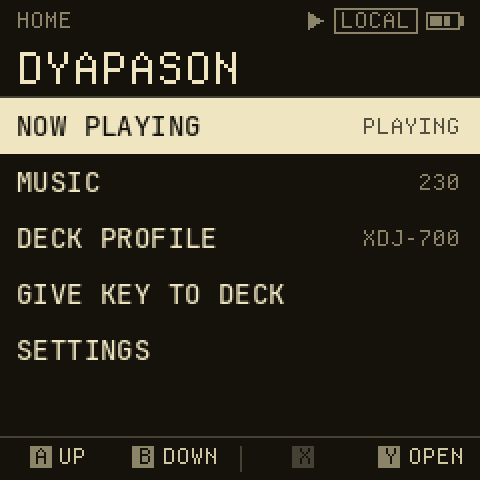
Opening MUSIC asks to take the key. Eject the key on the deck first, exactly as you would before pulling a normal USB stick out, then press Y for Take. To give it back, go home and choose GIVE KEY TO DECK; switching deck profile hands it back too.
Finding a track
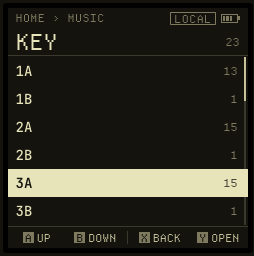
MUSIC lists the same ways of browsing a CDJ gives you, read from the rekordbox database on the key. The number on the right is how many entries each one holds. Something greyed out with a dash means your library has no such tags — mark up a few tracks in rekordbox and they light up.
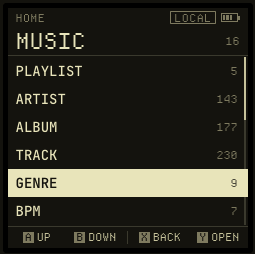
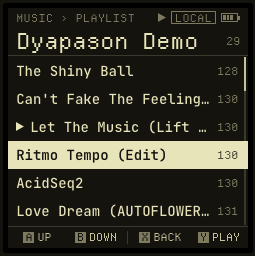
Two entries work differently from the rest:
- PLAYLIST keeps your rekordbox folders and the order you put the tracks in.
- FOLDER ignores the database completely and walks the files as they sit on the key — useful when a track never made it into rekordbox.
Playing
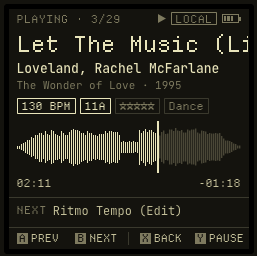
Press Y on any track and it plays. The queue is the list you came from: start a track inside a playlist and NEXT walks that playlist; start it inside a genre and NEXT walks the genre.
| Button | Press | Hold |
|---|---|---|
| A | Previous, or back to the start of the track once it has played a few seconds | Rewind |
| B | Next | Fast-forward |
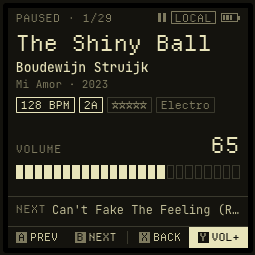
| X | Back to the list — the music keeps playing | Volume down |
| Y | Play / pause | Volume up |
The waveform is the one rekordbox already drew for the track, so it appears instantly. A flat line means the key has no analysis for that file — play it once in rekordbox, or let the Manager prepare the key again.
Leaving the player leaves the music running: the top line keeps its ▶ and a NOW PLAYING row waits at the top of the home screen.
04
DECK PROFILE
THREE OR FOUR SECONDSCHANGE DECK IN THE BOOTH, WITHOUT A COMPUTER.
A key prepared for every deck carries one database per deck. DECK PROFILE says which one the deck is reading, and lets you change it in a few seconds.
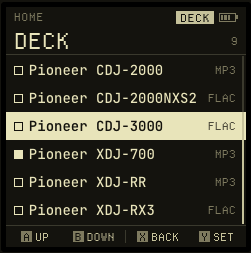
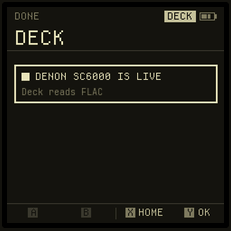
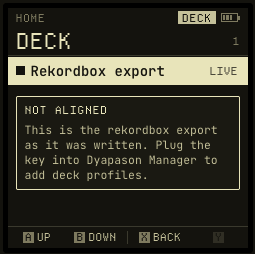
Choose a deck with Y. If music is playing it warns you first, because the key has to go back to the deck. Then it takes the key, swaps the database, and hands it over.
TWO NORMAL SURPRISES
Several filled squares. Decks that can’t read FLAC all get the same database, so an XDJ-700 and a CDJ-2000 are live together. Nothing is wrong.
One row you can’t change. That key was prepared for a single deck, or never prepared at all. The box on screen says which, and the fix is to run the Manager again with Dyapason USB drive ticked.
05
SETTINGS
BOTH REMEMBEREDTWO SETTINGS, KEPT WHEN YOU SWITCH OFF.
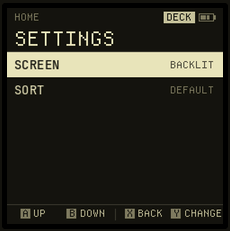
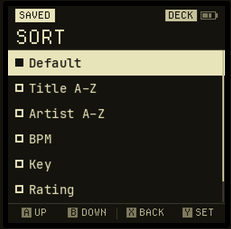
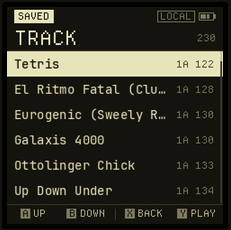
| Sort | What lists do | Right column |
|---|---|---|
| Default | Each level keeps its own order: a playlist as you arranged it in rekordbox, an album as its tracks run, A–Z everywhere else | BPM |
| Title A–Z | By track name | BPM |
| Artist A–Z | By artist, then album, then title | BPM |
| BPM | Slowest first | BPM |
| Key | Camelot order, 1A → 12B, slowest first inside a key | Key and BPM |
| Rating | Five stars first | Stars |
| Date added | Newest first | The date |
The sort applies to tracks. Artists, genres and labels stay A–Z so they stay findable. A list you already have open keeps its old order — go back to MUSIC and open it again.
06
A NIGHT OUT
THE EVERYDAY ROUTINEBEFORE YOU LEAVE, AND IN THE BOOTH.
Before you leave
- Export from rekordbox to the key as usual, with the playlists you want.
- Run the Manager and prepare the key with Dyapason USB drive ticked, so you’re covered whatever the booth has.
- Charge the device over USB-C, and pack the two adapters: micro-USB to USB-A for the deck, 3.5 mm to 6.35 mm for headphones.
In the booth
- Check the deck on the device: DECK PROFILE, and if the filled square isn’t the deck in front of you, choose it.
- Plug in and play. The deck sees an ordinary USB key with your library and artwork.
- To preview in headphones, eject the key on the deck, then MUSIC → Take on the device. Give it back with GIVE KEY TO DECK when you’re done.
WORTH REMEMBERING
Anything that takes the key away from the deck — MUSIC, or a profile switch — stops the deck reading it. Eject it on the deck first, and never do it while a track from the key is playing out front.
07
IF SOMETHING’S WRONG
WHAT EACH MESSAGE MEANSEVERY MESSAGE, AND THE FIX.
On the deck
| What you see | Why | What to do |
|---|---|---|
| The deck says there’s no USB, or nothing happens when you plug in | The player is holding the key. The device’s top line reads LOCAL | On the device: home, then GIVE KEY TO DECK |
| Tracks are listed but won’t load, or the deck complains about the format | The live profile is for a different deck | DECK PROFILE on the device, pick the deck in front of you |
| Error E-8305 on a Pioneer player | An MP3 with tags the player can’t read | Run the Manager on the key; it rewrites those tags |
| Blank waveform, and BPM takes half a minute per track | The deck has no analysis for that file and is redoing it | Analyse the track in rekordbox, export again, and run the Manager |
| Tracks you added in rekordbox aren’t there | The key still has the previous export | Export to the key from rekordbox, then run the Manager again |
On the device
| What you see | Why | What to do |
|---|---|---|
| Not read yet on DECK PROFILE | The player hasn’t held the key since it was switched on | Open MUSIC once, which reads the key |
| One row you can’t change, with a box explaining | The key was prepared for a single deck, or never prepared | Run the Manager with Dyapason USB drive ticked |
| export_….pdb is no longer on the key | The key was re-prepared, and that deck’s database is gone | Press X, open MUSIC to re-read the key, then pick again |
| The key could not be mounted | The key was busy, usually because the deck hadn’t let go of it | Eject it on the deck, then try MUSIC again |
| Entries greyed out with a dash in MUSIC | Your library has no tags of that kind | Add ratings, colours or labels in rekordbox if you want to browse by them |
| A flat line instead of a waveform | No analysis file on the key for that track | Same as the deck case above |
| Nothing on screen after switching on | Flat battery, or the software didn’t start | Charge over USB-C; if it stays blank, it needs a look over SSH |
In the Manager
| What you see | Why | What to do |
|---|---|---|
| No drive yet — plug in a Rekordbox export | The key has no rekordbox export on it, or you’re not on macOS | Export to the key from rekordbox first. Drive detection works on macOS |
| Preparation stopped before finishing | Something the run needs is missing — the detail line names it | See the two rows below, or send us the detail line |
| No export.pdb found on USB / Contents/ not found | That key isn’t a rekordbox export | Export from rekordbox onto the key and try again |
| ffmpeg not found or not runnable | The bundled converter couldn’t start, usually a damaged install | Reinstall the app |
| … errors — last: … on an otherwise finished run | Individual files failed; the rest went through | Hover the line to see the list; those tracks stay as they were |
| You want the key back as it was | — | Press R, then Enter, on Restore from Original state… |
08
REFERENCE
DECKS · FORMATS · BUTTONSWHAT EACH DECK IS SERVED.
Decks that can read FLAC get your files untouched. The rest are served MP3 copies, and the database is rewritten to point at them, so the track list, artwork and waveforms stay right.
| Deck | Served | Reads |
|---|---|---|
| Pioneer CDJ-3000 | FLAC | mp3, aif, aiff, wav, flac, m4a |
| Pioneer CDJ-2000NXS2 | FLAC | mp3, aif, aiff, wav, flac, m4a |
| Pioneer CDJ-2000 | MP3 | mp3, aif, aiff, wav, m4a |
| Pioneer XDJ-RX3 | FLAC | mp3, aif, aiff, wav, flac, m4a |
| Pioneer XDJ-700 | MP3 | mp3, aif, aiff, wav, m4a |
| Pioneer XDJ-RR | MP3 | mp3, aac, m4a, wav, aif, aiff |
| Denon SC6000 | FLAC | mp3, aif, aiff, wav, flac, m4a, ogg, alac |
| Denon SC5000 | FLAC | mp3, aif, aiff, wav, flac, m4a, ogg, alac |
| Generic | FLAC | everything above, plus aac |
Buttons
| Button | In a list | Held in a list | In the player | Held in the player |
|---|---|---|---|---|
| A · top left | Up | Scroll faster, with a jump letter | Previous / restart | Rewind |
| B · bottom left | Down | Scroll faster, with a jump letter | Next | Fast-forward |
| X · top right | Back | Home | Back, still playing | Volume down |
| Y · bottom right | Open / play / confirm | — | Play / pause | Volume up |
What the device keeps
Your screen and sort settings, the volume, and a note of which deck profile is live. Your music, playlists and ratings all live on the key and are only ever read — the player never edits your library.
STILL STUCK?
Send us the message you saw and we will tell you what it means.
WRITE TO US ↵